Notice!
This is a tutorial on how to CREATE a website, not on how to publish one to the World Wide Web! Publishing is a whole other topic that will not be discussed in this guide. I should also point out that it is FREE to create a website! Aside from any resources needed, you can create a website as long as you have a code editor like Notepad++. Some other programs and resources that could be useful are Paint.net (image editor), Audacity (audio editor), and W3Schools (Programming tutorial website). Now, before you start actually creating your website, let’s talk about the basic file structure of a website.
This website was made using a template.

Website File Structure
You may not think of it like this, but websites are files. You may not have direct access to the files of the websites you visit, but websites are stored on the internet as a collection of files under a root folder. Each root folder contains an index.html file, which is the homepage loaded when visiting the website from the World Wide Web. Other files are stored within other folders, as it keeps the website organized and easy to edit for anyone who needs to. So, let’s begin. Start by creating the root folder where you want your website to be stored.
Next, create a few other folders inside the root folder for the sake of organization. Some examples of folders you could make are: images, audio, stylesheets, fonts, etc.. Finally, you may now create the homepage index.html file. This type of file can’t be normally created from the navigation menu on Windows 10, so we need to enable file extensions so we can create one. You can do so by clicking View in the top left of the File Explorer application, and ensuring that the checkbox next to “File name extensions” is ON.

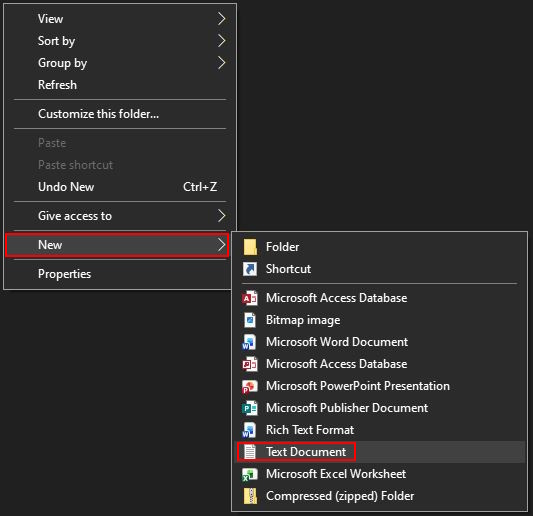
After that, we can convert an empty txt file into an empty html file. Create a new text file in your root folder, and rename it to index.html. Make sure that you change the file extension too!

Congrats!
Now you should be ready to start creating the basic structure of your website using HTML!

Tags
HTML is a language that uses opening and closing tags to indicate when parts of the website start, end, and certain properties are needed for specific parts of the website. Not every tag has an associated closing tag, but for the sake of simplicity we will start our explanation with the <html> tag.

The tag type is marked between a less than and greater than sign. In a closing tag, which is always after the opening one, there is an additional slash included after the less than symbol and before the tag type name. A list of many tags and their purposes can be found at w3schools.com. Tags can be infinitely nested inside one another, but of course there is still some amount of order between these tags.

Basic Website Foundation
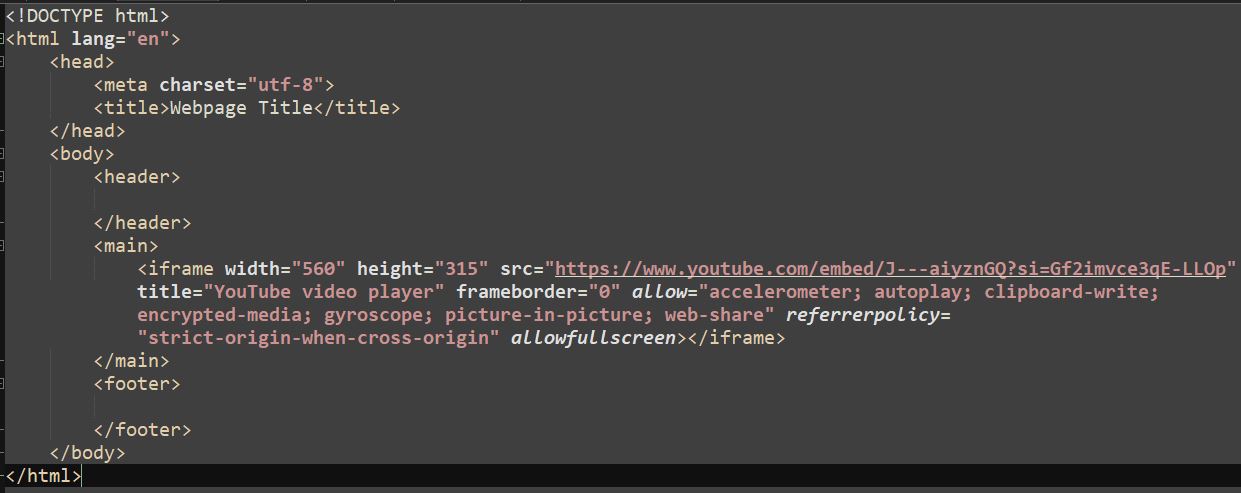
As a standard, most websites follow the same foundational tag layouts to keep things organized. This is the basic foundation that a website can be built off of:
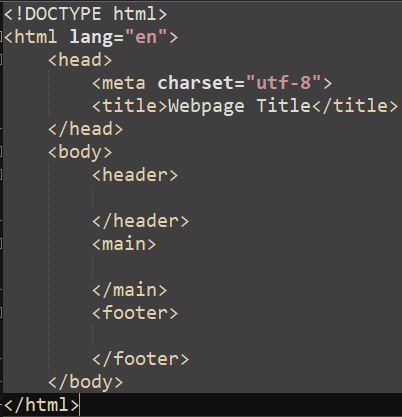
Now of course, this may look a bit overwhelming, so let’s break it down one tag at a time.
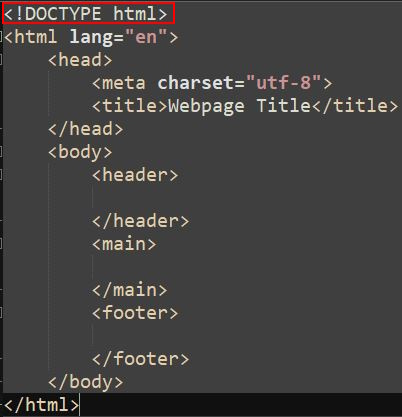
This <DOCTYPE> defines the version of HTML that this website uses. You don’t have to worry too much about it, just make sure it’s the first line in your .html file.
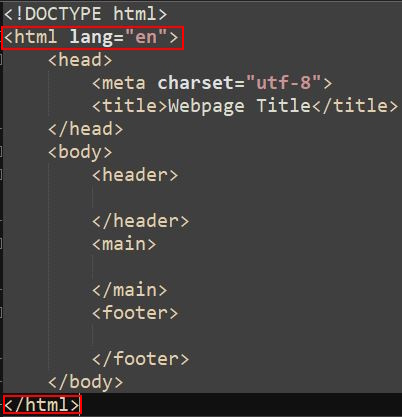
Next, we have the <html> tag. This tag defines the website as a whole, so it should be the 2nd and last lines of your document. You may have noticed that there is a little something extra included with the opening tag. lang=”en” is a property that is being assigned to that tag. In this case, the language (lang) is being set (=) to English (“en”). What the property is being set to must ALWAYS be encased within double quotes.
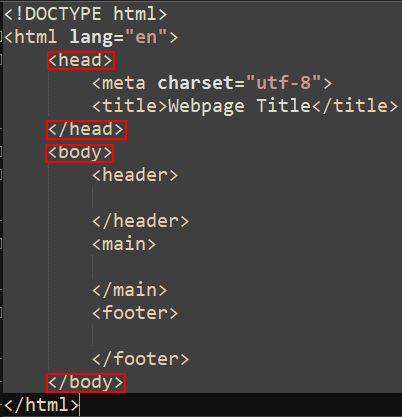
Inside the html tag we have the <head> and <body> tags. These are essentially the two main parts of a website. Anything within the head tag is usually for setting up the website, or providing info to the browser about what the website needs to function. Some examples of this could be links to external stylesheets, defining the title of the website, and more. The body tag contains all primary content in the website, essentially anything you can visually see on your browser. These could be images, text, audio, and other things.
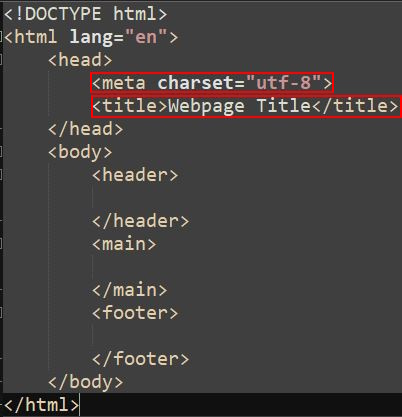
The <meta> and <title> tags, while not required, are good to have included within your head tags. The function of meta is not important for what you're learning, but the title tag defines what the browser will display as the title of the website. This may differ based on what browser one is using, but it will always be displayed as the text on the top tab.
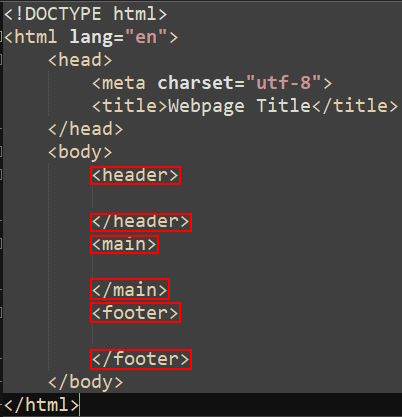
The body tag can be further divided into three main sections of the visual aspects of the webpage. <header> defines the content at the TOP of the website, while <footer> defines the content at the BOTTOM of the website. <main> is everything in between.
Adding Text and Links
While we aren’t quite onto implementing media yet, no website would be a website without some form of text. In HTML, there are several divisions of text that can be used to better organize a webpage even without CSS. For example, these are four of those tags:
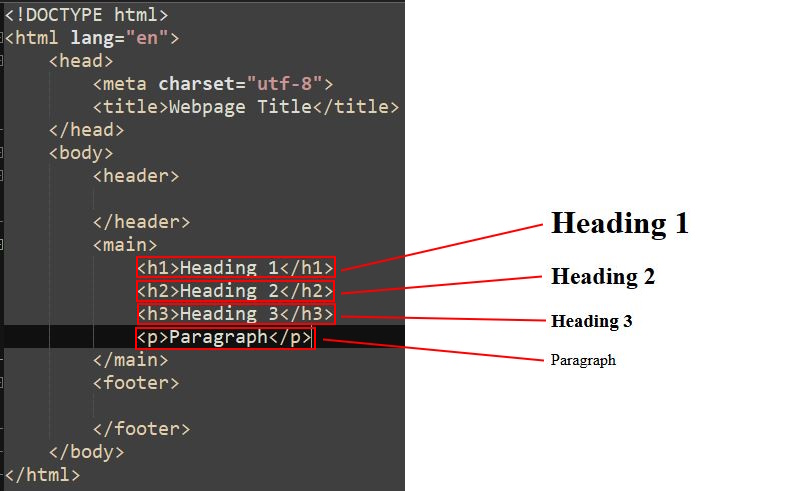
The first three are heading tags, with <h1> being the biggest in size and the size decreasing as the number in the tag name increases. <p> is a paragraph tag, which is used to mark regular text. Think of it like in a book, you wouldn’t have the chapter titles and story all in a big or small font, it would just be the chapter titles in a large font and the story in a smaller font, so it’s easier to distinguish the two from each other.
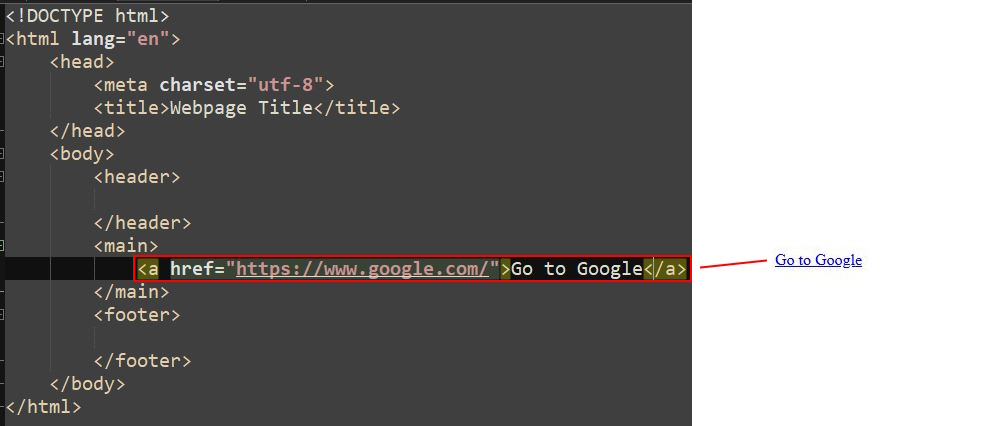
Links are a little more complicated. Links can be created using the <a> tag, and the destination it goes to is actually defined using properties. The link it will take the user to is listed as the value of the href property, while the text between the actual tags is the text displayed in the webpage.
What next?
Great! You’ve created the foundation for a website! However, as I mentioned previously, it doesn’t have any images or audio. Let’s fix that in the next step!

Images
To create a basic image, we will use the <img> tag. The <img> tag has no closing tag, but it does have a few properties that we’ll go over.
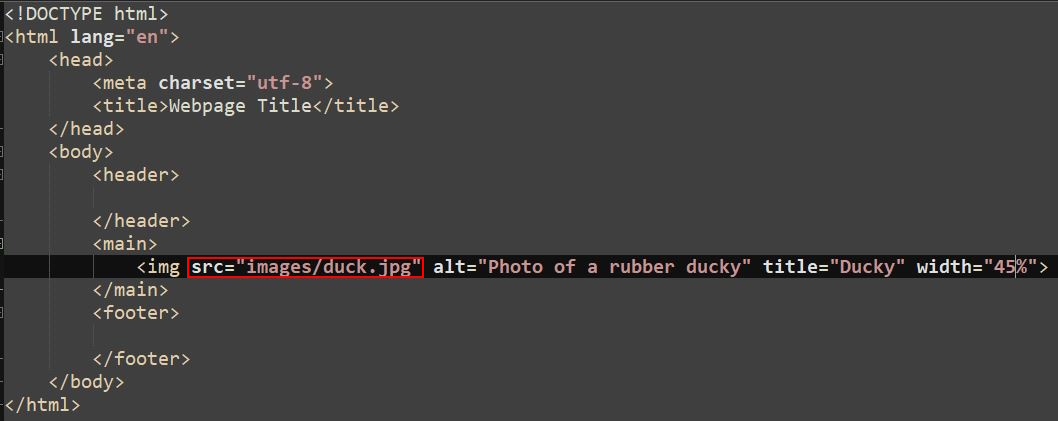
The first property is src, the source of the image. This could be a link to an image hosted on a web server, or one saved within the website document itself. For the purpose of this tutorial, we will assume that there is a folder in the root of the website called images. Inside this folder, there is a JPEG image saved as “duck.jpg”. It’s standard practice to keep file names lowercase and short with no spaces or special characters, but not too short! Simply set the src property to the path to the image.
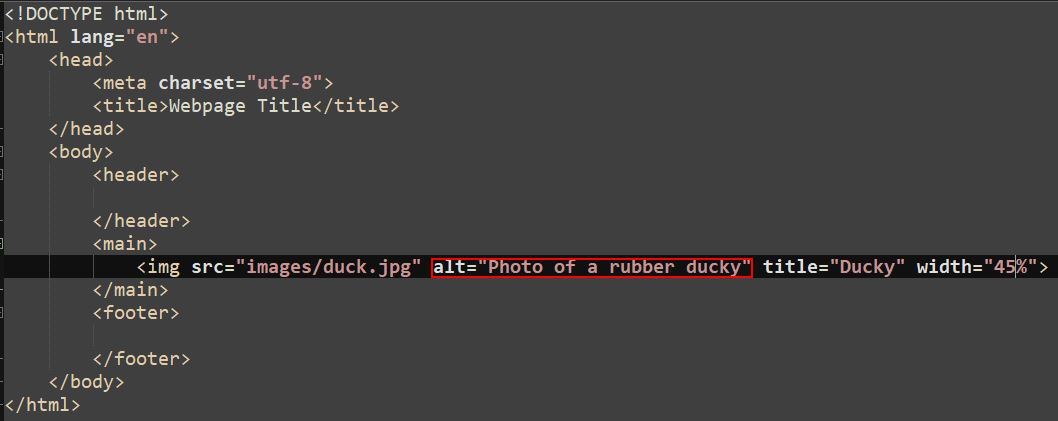
The next property we will focus on is the alt property. This is the text that gets displayed in the event that the image fails to load with the website. This is also useful for people who may not be able to properly see the image, so that the site is accommodated for people with disabilities.
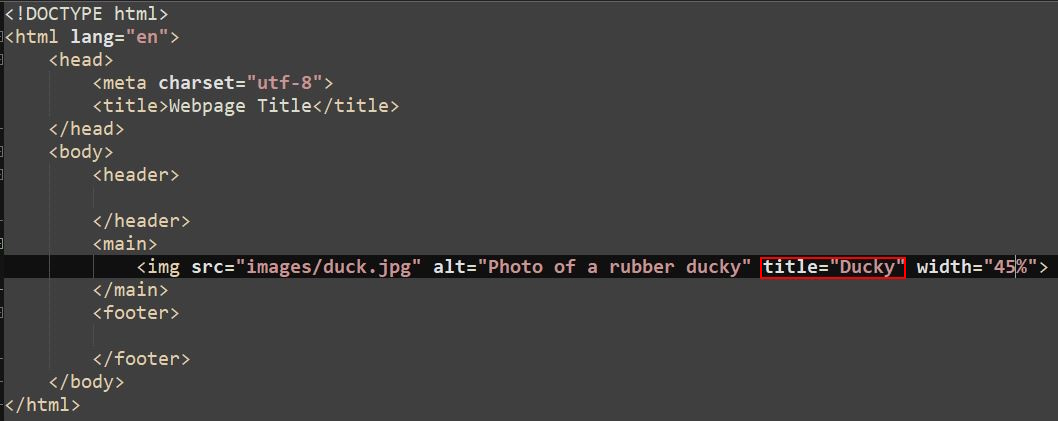
The title property refers to the text displayed when you hover your mouse over the image for a prolonged period of time. It is a good idea to set this to a short title for the image.
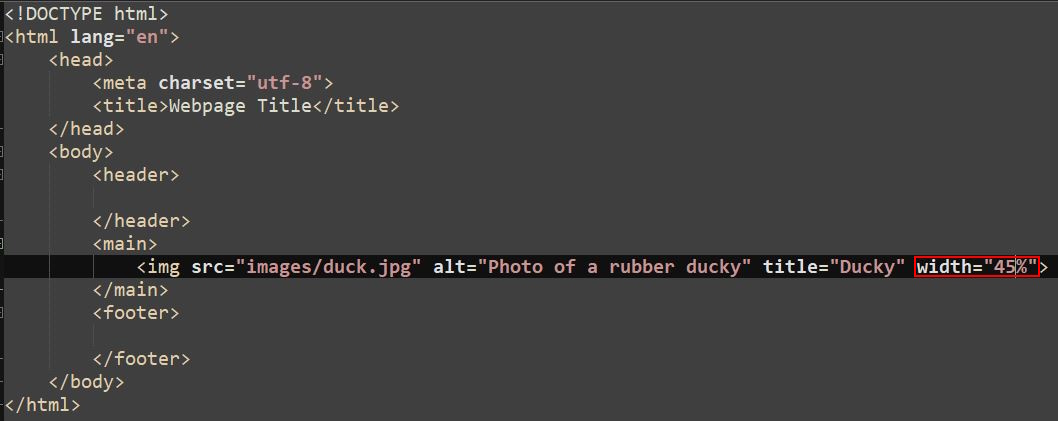
Finally, we have the width and height properties. It is worth noting that those properties must be defined in that exact order, width then height. Otherwise, problems could occur with the image in the webpage. If you only set the width, the height will be automatically set according to the width. For this example, we will be setting width as a percentage, 1000px meaning the image would span across the whole page.
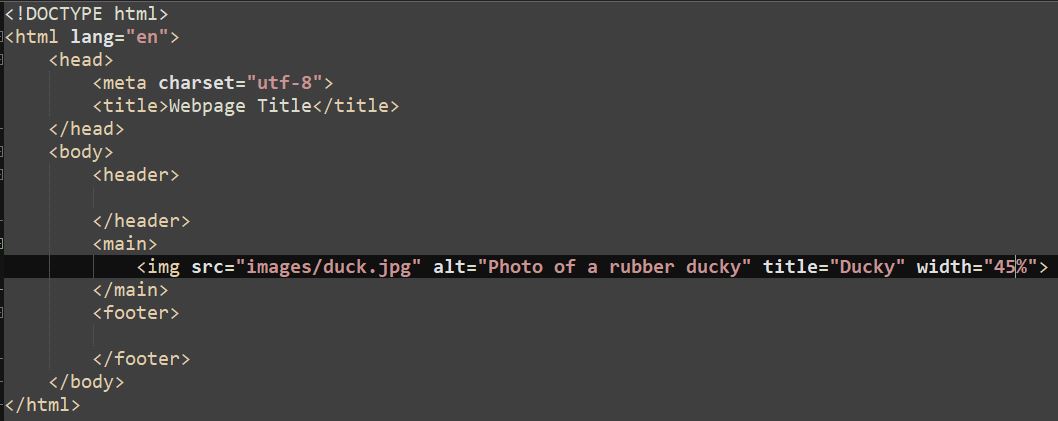
Congrats! Now you have an image displaying on your webpage!

Audio
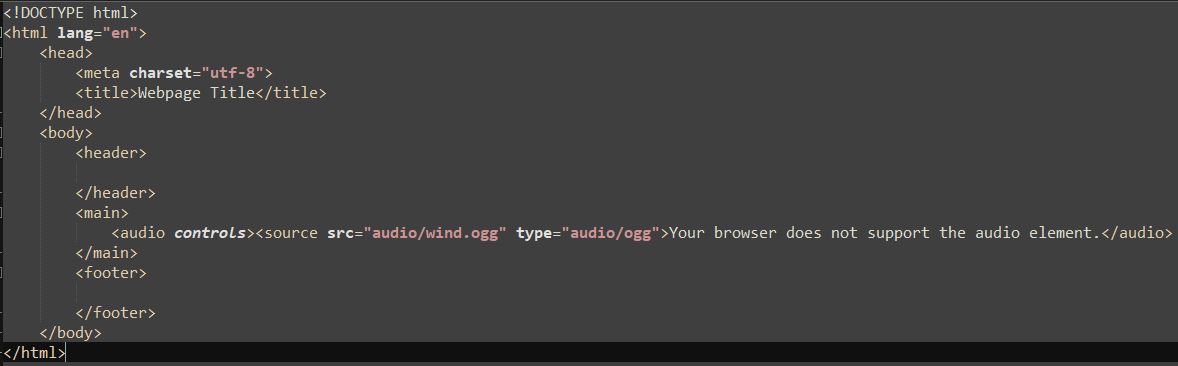
In order to create an audio player, we must use the <audio> tag and another tag called the <source> tag.
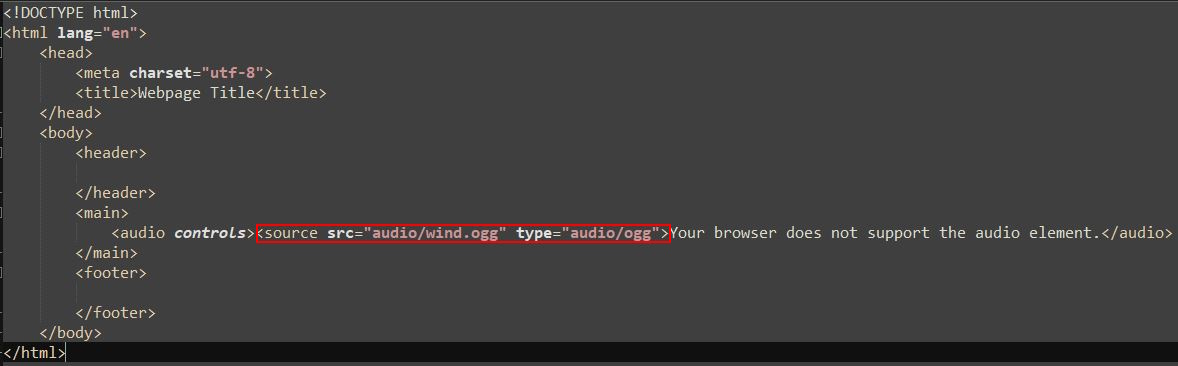
The source tag is used to give the audio tag and various other tags a path to the needed file. Much like the <img> tag, it has an src property, along with a new property called type. You should already know how src works by now, but what’s this type thing? Here, type is declaring the type of file that we are loading into the website. In this case, it’s the audio type of ogg. The text in between the source tag and closing audio tag will display if the audio fails to load.
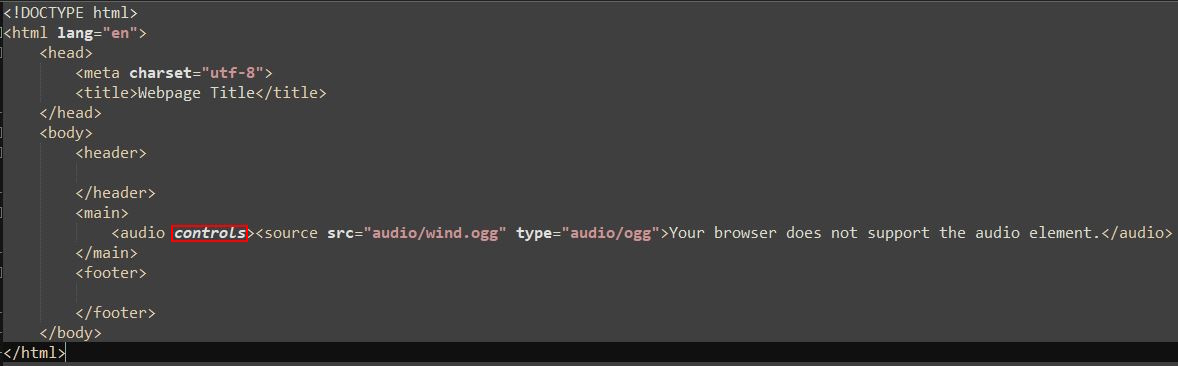
Thanks to the control property, you can now use the buttons to play the audio. In some browsers, you may even be able to change it’s speed!
Videos
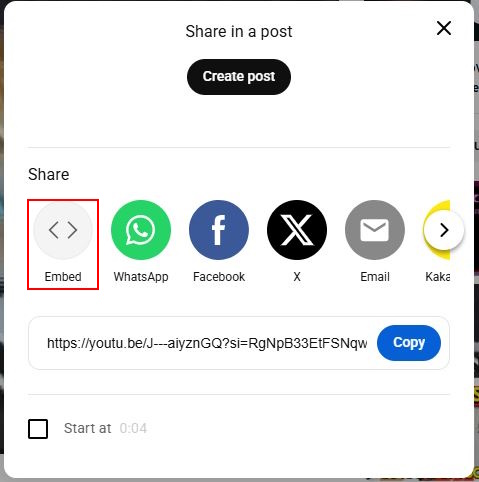
For the purpose of this example we will only be linking videos through YouTube iframe feature. Go to YouTube, and find a video you like. Then, click on Share and select Embed. This will display all the code you need, which can be easily copied by clicking on the Copy text in the lower right hand corner.
 |
 |
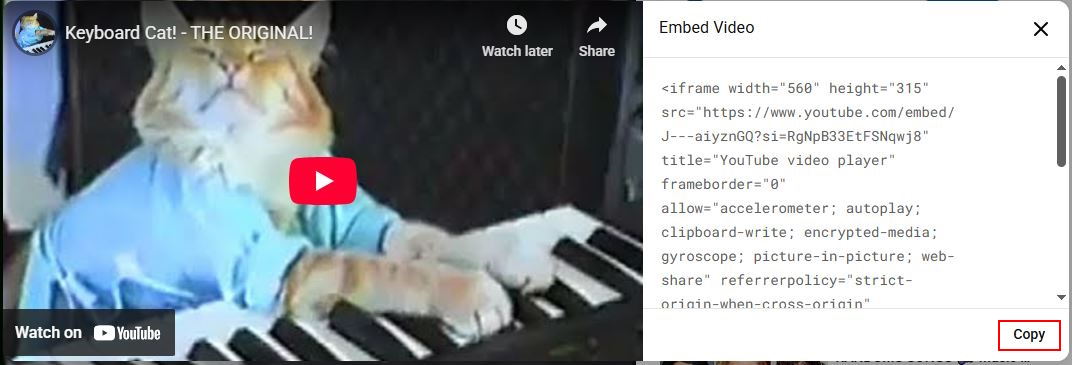 |
Then, simply paste this tag where you would like the video to be in your website, and there you have it!
My website looks kind of bland...?
You may be noticing now that your website, while functional, doesn’t look the best. This is because we are missing one last crucial component of our webpage, CSS.
How is CSS formatted?
It may look scary at first, but CSS formatting is easy! It coincides with the tags you’ve learned about in HTML. First, create a new file in your root folder called styles.css, then open it. To target a tag in CSS, simply type the following, replacing the tag type with whichever tag you’d prefer to target:

The curly brackets indicate the start and end of the CSS rules, much like the greater than and less than signs in HTML. In between, you can modify different properties that CSS allows you to. This may sound simple, but if you think about it, you can do a lot with CSS. You could change the color of anything, change how anything is spaced out, and even add shadow effects and borders. But, we’ll get to those possibilities later.

You can also apply CSS rules to multiple elements using commas. This saves space in the document for more important things. But how will all this CSS link together with our HTML documents? We can do this by using the <link> attribute in the head section of whichever HTML pages you’d like to apply the CSS styling to.
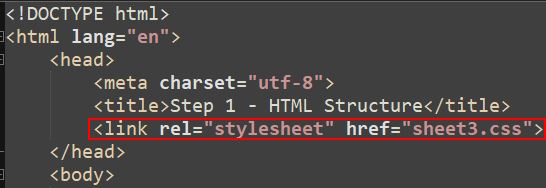
Ensure that the path is formatted correctly, so that the browser can locate the CSS document!
Uses of CSS
As stated earlier, CSS can be used to modify various visual elements of your page. For this small example, we will start with simple examples. Let’s increase the font size of all h1 tags.
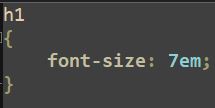
This simple piece of code has made all h1 tags within web pages that are linked to this CSS file much bigger! However, we can do even more;
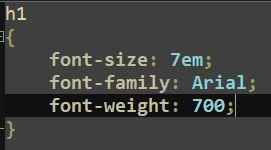
Now, the font has been changed to Arial, and the text has been bolded. There are many, many other things you can do with CSS, a list of said properties can be found here: W3Schools.
